Raise a Technical Support Ticket
There are two ways to raise a ticket: through the customer portal, or by submitting a ticket via email.
Raise a Ticket Through the Customer Portal
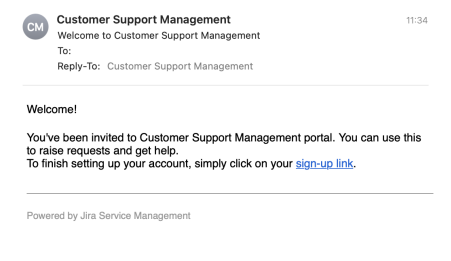
- You must first receive a link from Jira, on behalf of eXate, to the Customer Support Management Portal
- Set up your account by following the sign-up link
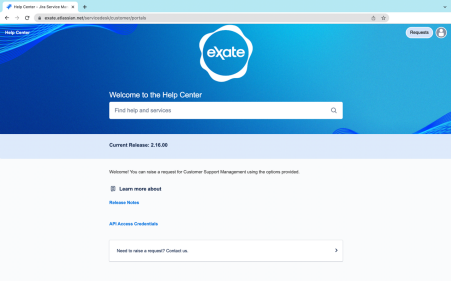
- Once your account is set up, you'll be directed to the Help Centre page, where you can access release notes, API access credentials, and raise requests
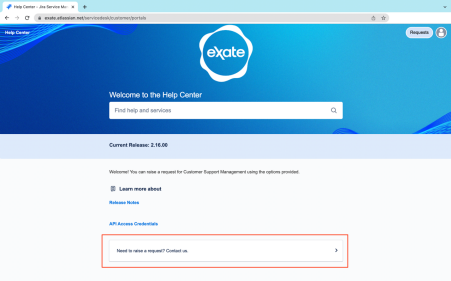
- To raise a request, click the tab "Need to raise a request? Contact us."
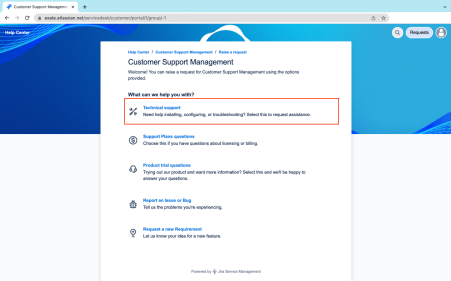
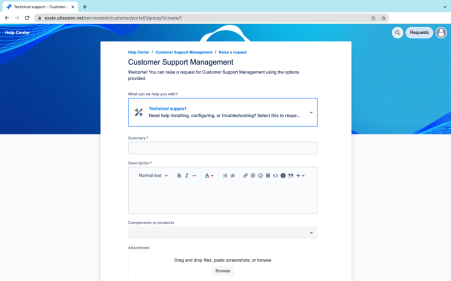
- This directs you to the Raise a Request categories. To raise a Technical Support request, click the "Technical Support" tab
- Add a summary of the request and details, add any relevant components or products, attach any screen captures, scripts, or supporting documentation, then click Send
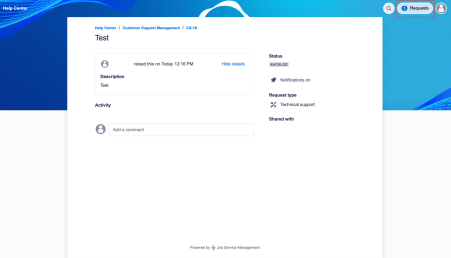
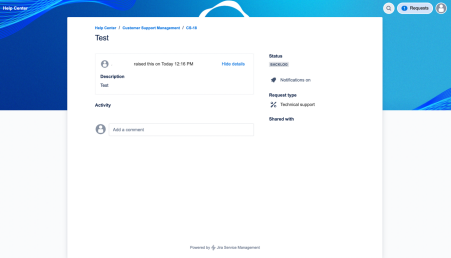
- Once submitted, you'll see a summary of the request
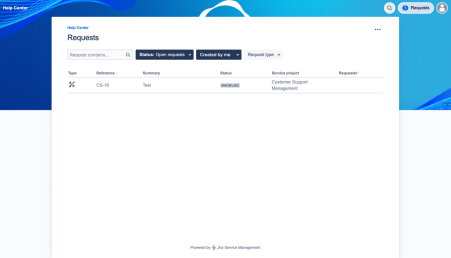
- To view requests you've submitted, click the "Request" tab, which shows two options:
- Created by me: all requests you've submitted
- All: all requests submitted by you and your organisation

- Clicking on either option shows all requests submitted by you or your organisation
- Jira sends a confirmation email to your address once the request is received
Raise a Ticket via Email
Send an email to support@exate.atlassian.net:
- Open the email program of your choice
- In the "To" line, enter the support email address
- In the body of your message, include as much detail as you have about the product, component, and problem
- Click Send, Jira sends a confirmation email to your address once the request is received