Vault Overview
Attributes, Policies, Manifests, and PETs describe governance decisions and protection logic. The Vault is where the underlying configuration and connections those decisions run on top of are actually stored.
The Vault is a secure storage service for all eXate applications. All runtime application configurations and firm-specific sensitive data are stored in the Vault. It can only be configured and maintained by an administrator, and is deployed as part of the Management namespace.
To access it, navigate to the "Useful Links" section of the eXate portal and click "Vault." This opens a second window at the Vault's own URL, where you'll log in again using your tenancy credentials. From the Vault homepage you can reach the four areas below: Data Sources, Location, Multi-Region, and System Configuration.
Data Sources
The Data Sources menu combines all user-defined connections, both source and target, that eXate needs in order to protect them. Click "Data Sources" on the left-hand menu to find File Storage and Relational Databases.
- File Storage: connections to SMB, local storage, AWS, HDFS, and NFS. Navigate to "Local Storage" or "SMB," press "+", enter a name and connection usage type, then configure the connection.
- Relational Databases: connections to Oracle, MySQL, PostgreSQL, SQL Server, Snowflake, H2, and Dremio, set up the same way.
Location
Click "Location" to find Namespace and Connection Storage.
Namespace registers a namespace within the eXate system and links it to API endpoints. Click the pencil icon to edit a namespace's Name and IsDefault toggle, or add an API endpoint (Instance Name, EndPoint URL, EndPoint Type, Port) via the "+" button. Add a new namespace the same way from the header.
Connection Storage is where the Custom Connection Stores used to store Keys and Shards live, add one under "Key," "Shard," or "FPE" via the "+" button:
- Key or Shard: choose a Storage Type (fixed once chosen), a Country, and a Connection.
- FPE (Format-Preserving Encryption): the same three fields, plus the Key to be delivered to the endpoint.
Multi-Region
This is the operational mechanism behind the Data Sovereignty Concepts described in the Platform overview: maintaining sovereignty of keys and processes when handling multi-region data. The Vault handles all cross-region configuration, storing the connection information for each country.
Connection Storage (the same menu covered under Location above) is what defines these custom connection stores for location-specific data. A store named "Key-CH" with usage type "Key" can only be used as a Key Store; the same pattern applies to Ciphertext Shards, since ciphertext can be split into multiple parts, each held within its own jurisdiction.
- Key Connection Storage: Key Stores are mapped to a country, telling the application which store to use for that country. Keys used for Pseudonymise, KeyAuthorisations, and KeyRequest audits are all stored per Key Store, per country.
- Shard Connection Storage: Shard Stores are mapped to a country the same way. Once data is protected, it's broken into Shards stored across the respective Shard Stores; one part is returned to the user as the protected output, used to identify and later reconstruct the information. Because reconstruction requires every part, most ciphertext can stay in-jurisdiction while only a token/identifier and a partial ciphertext travel to the calling application, this is also what helps protected values fit within existing column-length restrictions, since ciphertext still counts as personal data under some regulations.
- FPE Connection Storage: Format-Preserving Encryption keeps ciphertext in the same format as the plaintext input (a Date stays a Date, an Integer stays an Integer), so downstream systems remain compatible. FPE keys are stored per region the same way, via Data Source, Country, and FPE Key.
Database Audit: once connection storages are set up, every key access request is logged in the KeyRequest table of the Keys database for that region, KeyReleaseId, KeyAuthorisationId, Username, KeyGranted, DateRequested, and TypeOfAccessRequest (Request, Create, or Delete).
System Configuration
System Configuration stores key-value pairs used by the eXate system, click "System Config" on the left-hand menu.
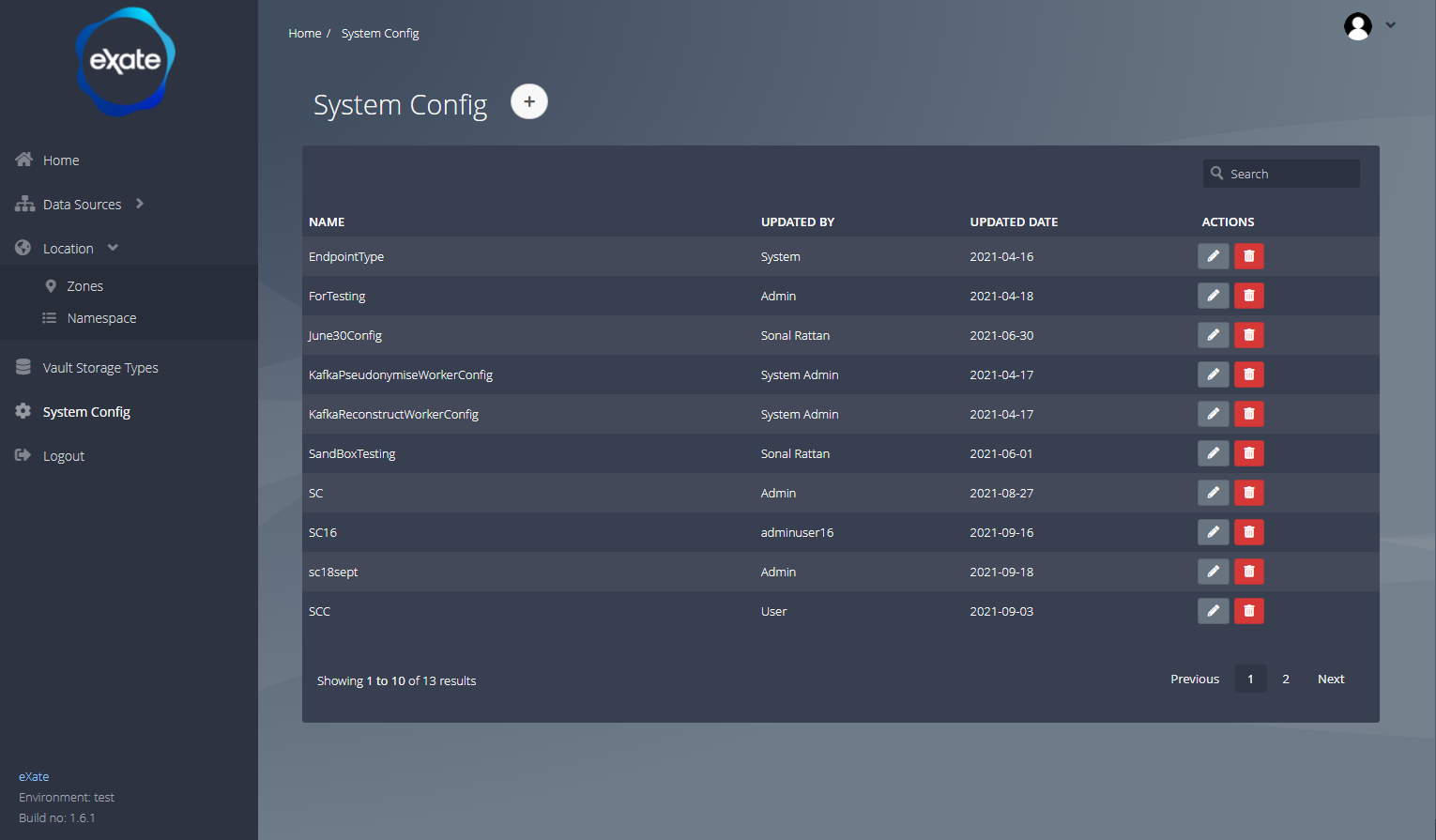
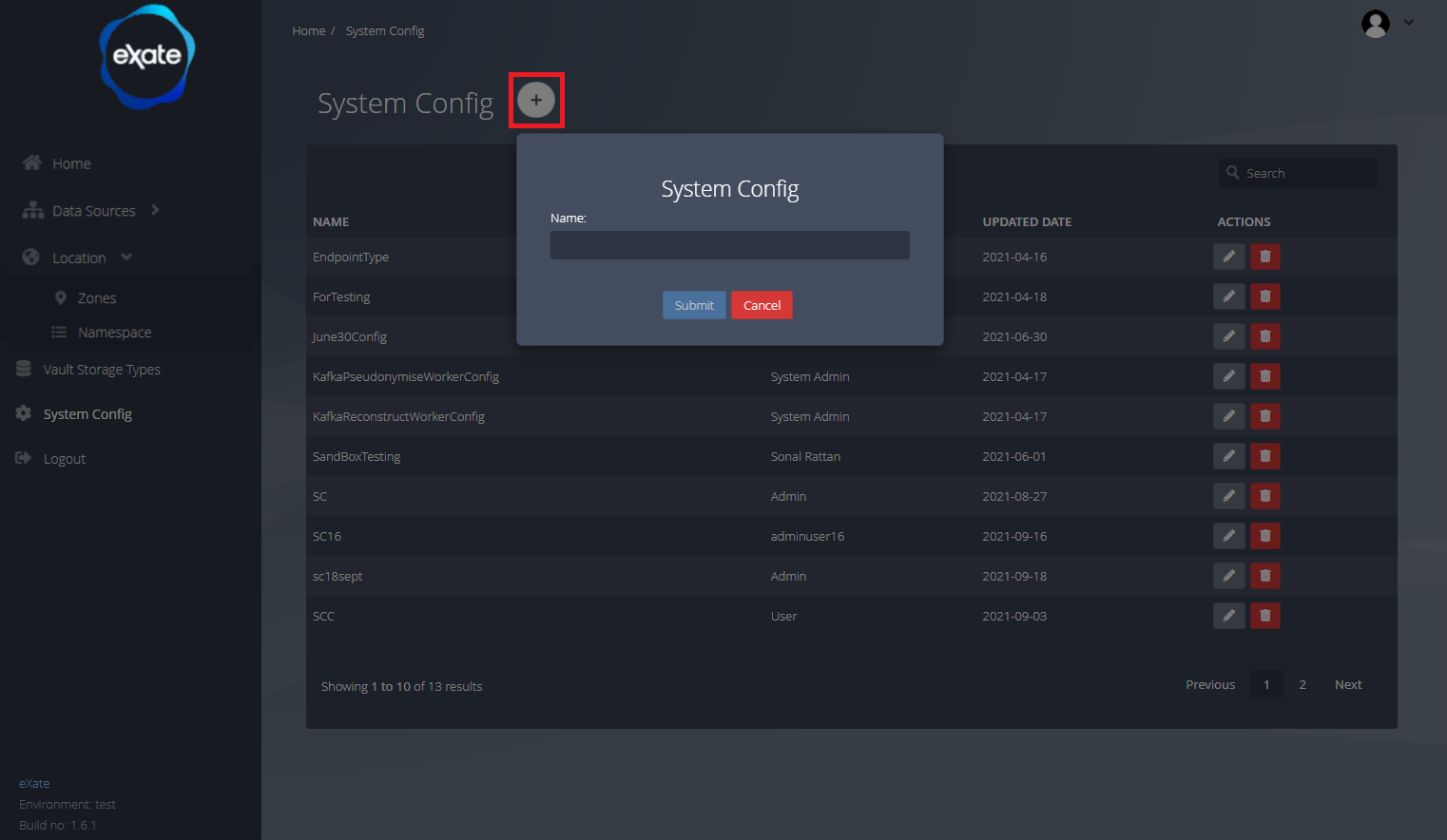
- Add a System Configuration: click the large "+" icon and name it.
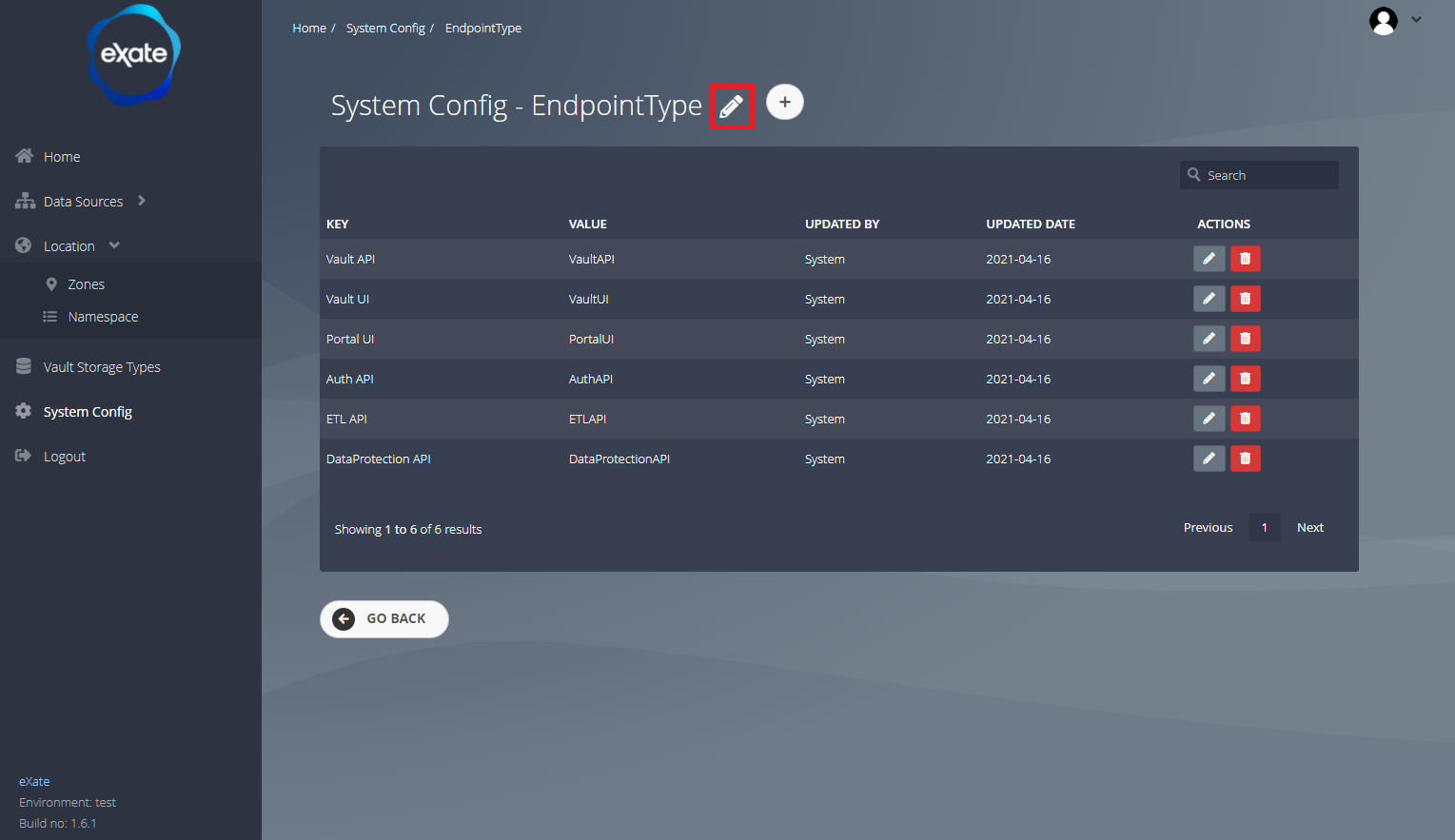
- Edit its values: opens the key/value pairs for that configuration, where you can add, edit, or delete individual entries.
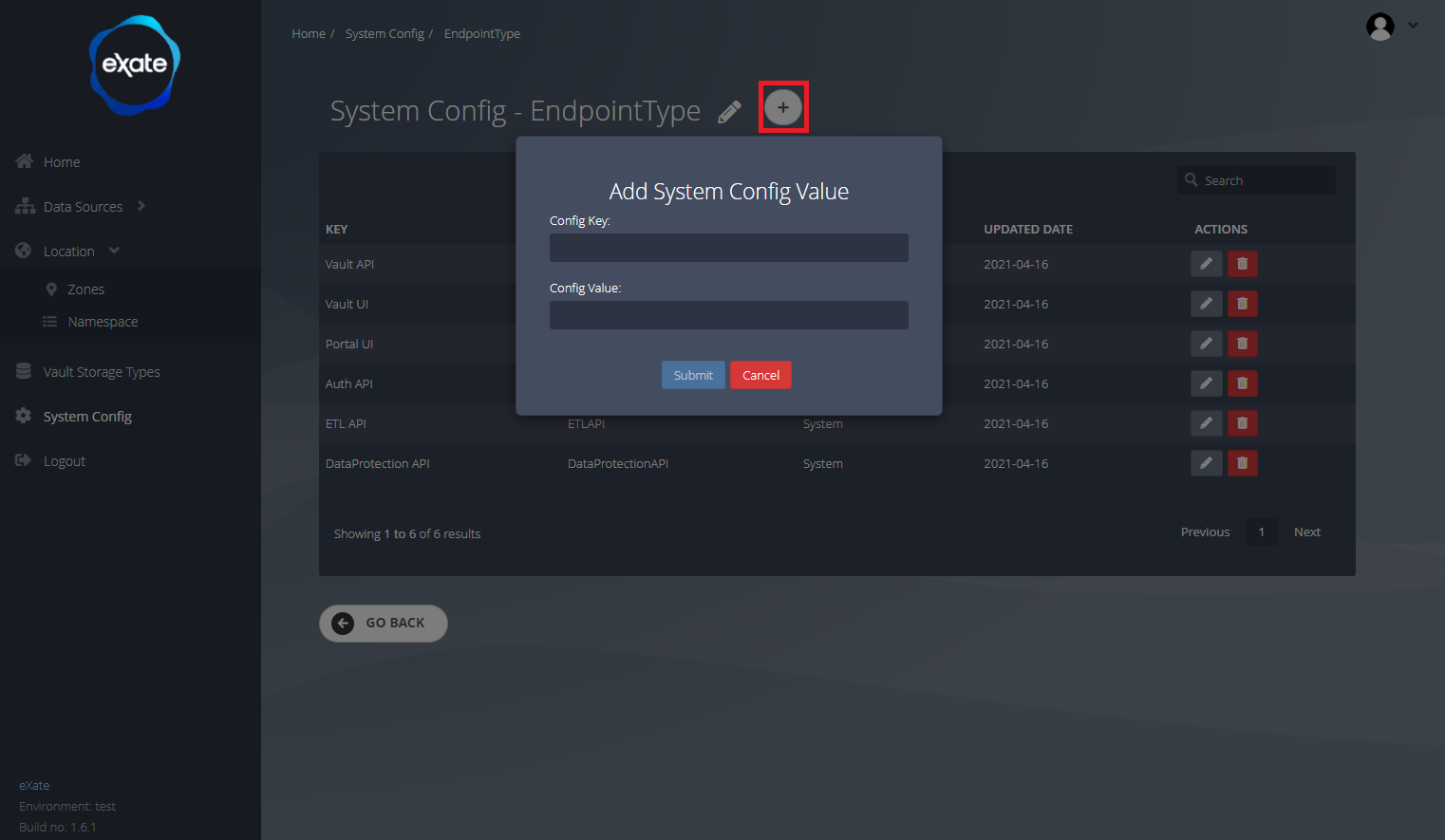
- Add a record: click "+", fill in the key and value.
- Edit a record: click the pencil icon next to it.
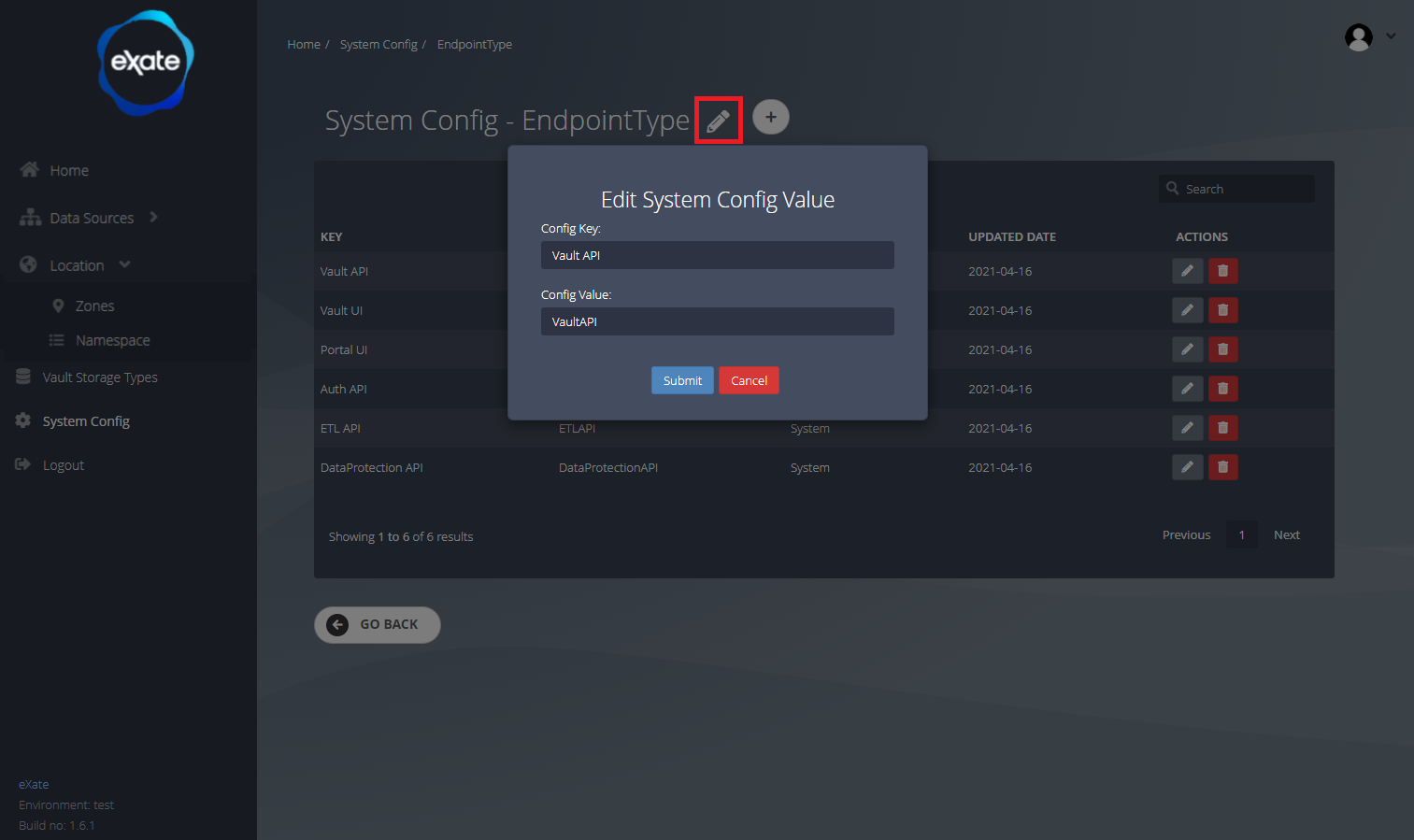
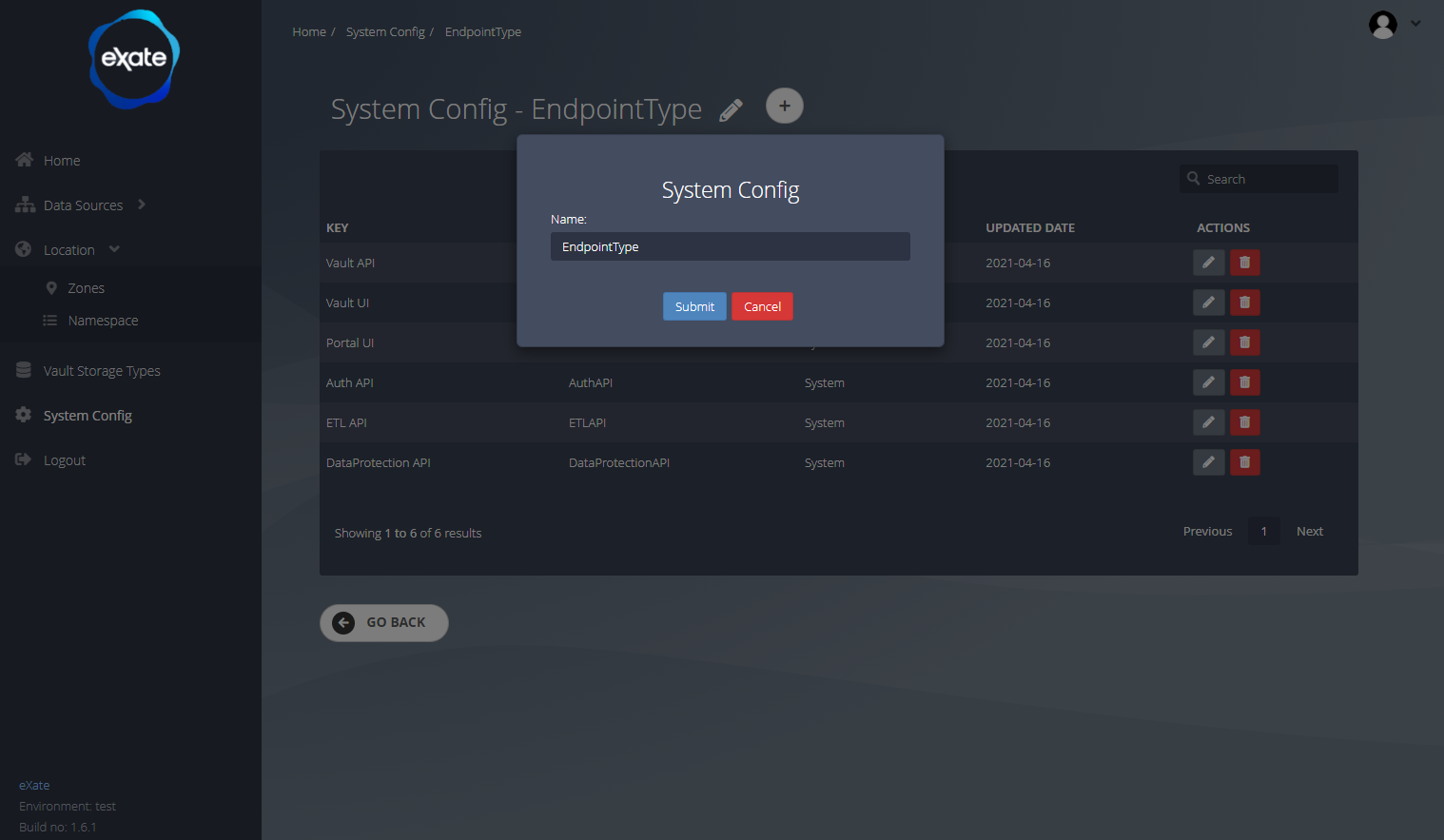
- Rename a configuration: click the large pencil icon at the top of the page.
Example: Changing the Pseudonymisation Delimiter
By default, a pseudonymised value is returned as metadata, a delimiter, then the protected fragment. If a downstream system's validation rejects the default delimiter characters, override them here instead of changing the underlying protection.
- Create a System Configuration named
PseudonymiseDelimiter. - Add three records to it:
- StartIdentifier: the character(s) marking the start of the metadata portion. Leave empty for no start marker.
- EndIdentifier: the character(s) marking the end of the metadata portion. Leave empty for no end marker.
- SplitIdentifier: the character separating the metadata from the protected fragment itself. Defaults to a comma, change this if a comma breaks downstream validation.
- If you also need to pin or upgrade which protection handler version is used for pseudonymisation jobs, this is set separately under Protection Version, rather than as a System Configuration record.
This can also be done via the Management API, see the API Guide and the accompanying Postman collection's "System Configuration" folder for the equivalent requests.
What's next
With the underlying configuration and connections covered, the last step is Admin: managing the tenancy and Users of the eXate platform itself.